Use the Advanced Transactions Filter in the Rootstock Explorer
The Transactions page in the Rootstock Explorer allows users to view and analyze all transactions occurring on the Rootstock network. It provides detailed insights into transaction activity, including sender and receiver addresses, execution status, and more.
To help users quickly find specific transactions, the Explorer includes an Advanced Transactions Filter. This feature enables precise searching using multiple criteria, making it easier to analyze blockchain activity efficiently.
Why Use Transaction Filtering?
Blockchain networks generate a large number of transactions. Without filtering, it can be difficult to locate specific data.
The Advanced Transactions Filter helps you:
- Quickly locate specific transactions
- Analyze network activity
- Debug smart contract interactions
- Track transfers between addresses
- Investigate failed or successful transactions
Overview of the Advanced Transactions Filter
The Advanced Transactions Filter is available on the Transactions page and allows users to refine results based on several parameters such as transaction type, status, block number, date, and addresses.
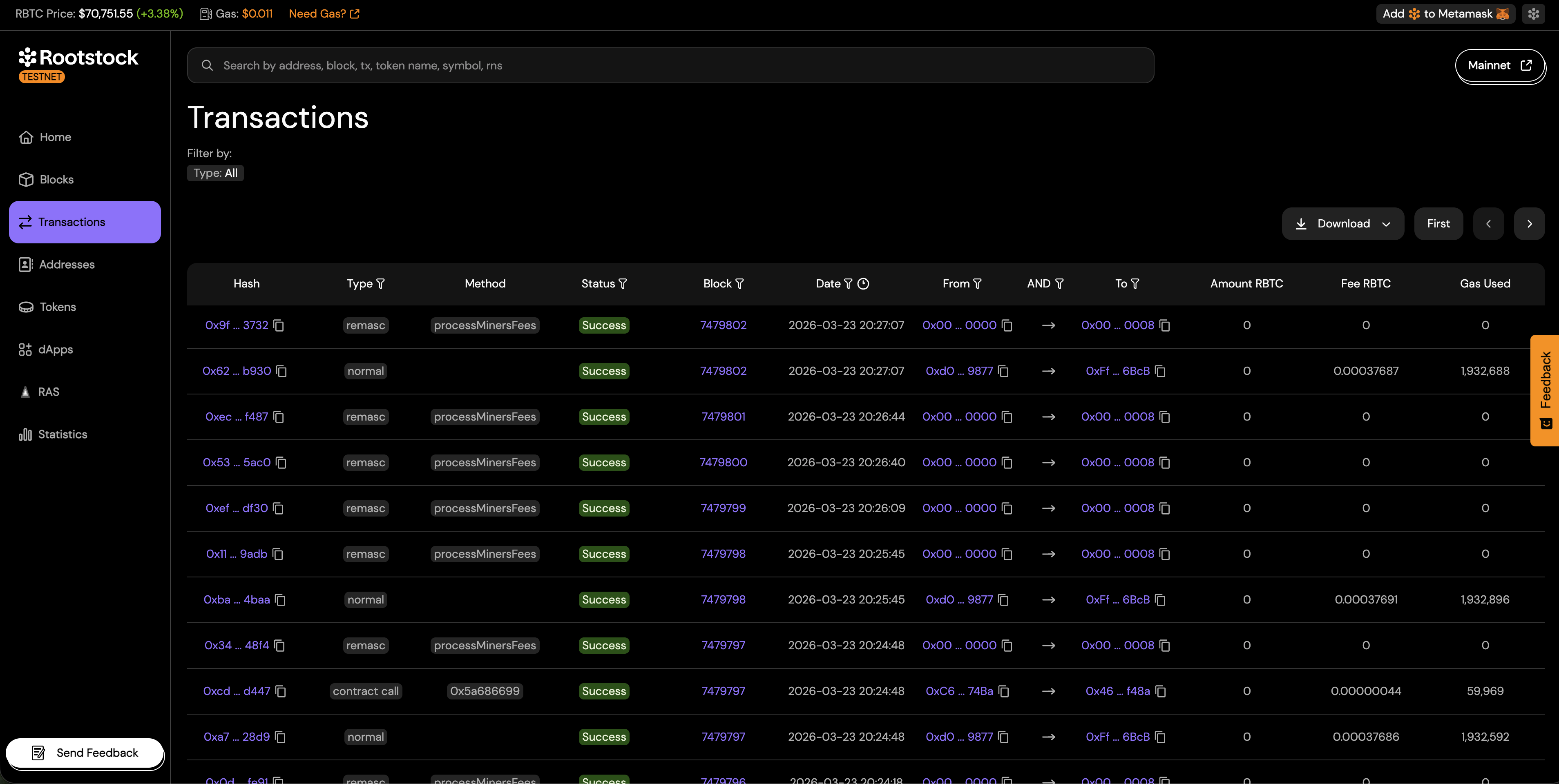
Step-by-step: use the filter
Follow these steps to build and apply a filter on the Transactions page.
- Open the Transactions page in the Rootstock Explorer for the network you need (mainnet or testnet).
- Locate the advanced filter entry point (for example Filter, Advanced filter, or a filter icon) on or near the transaction list.
- Set the fields you need. Leave any field empty if it should not restrict results.
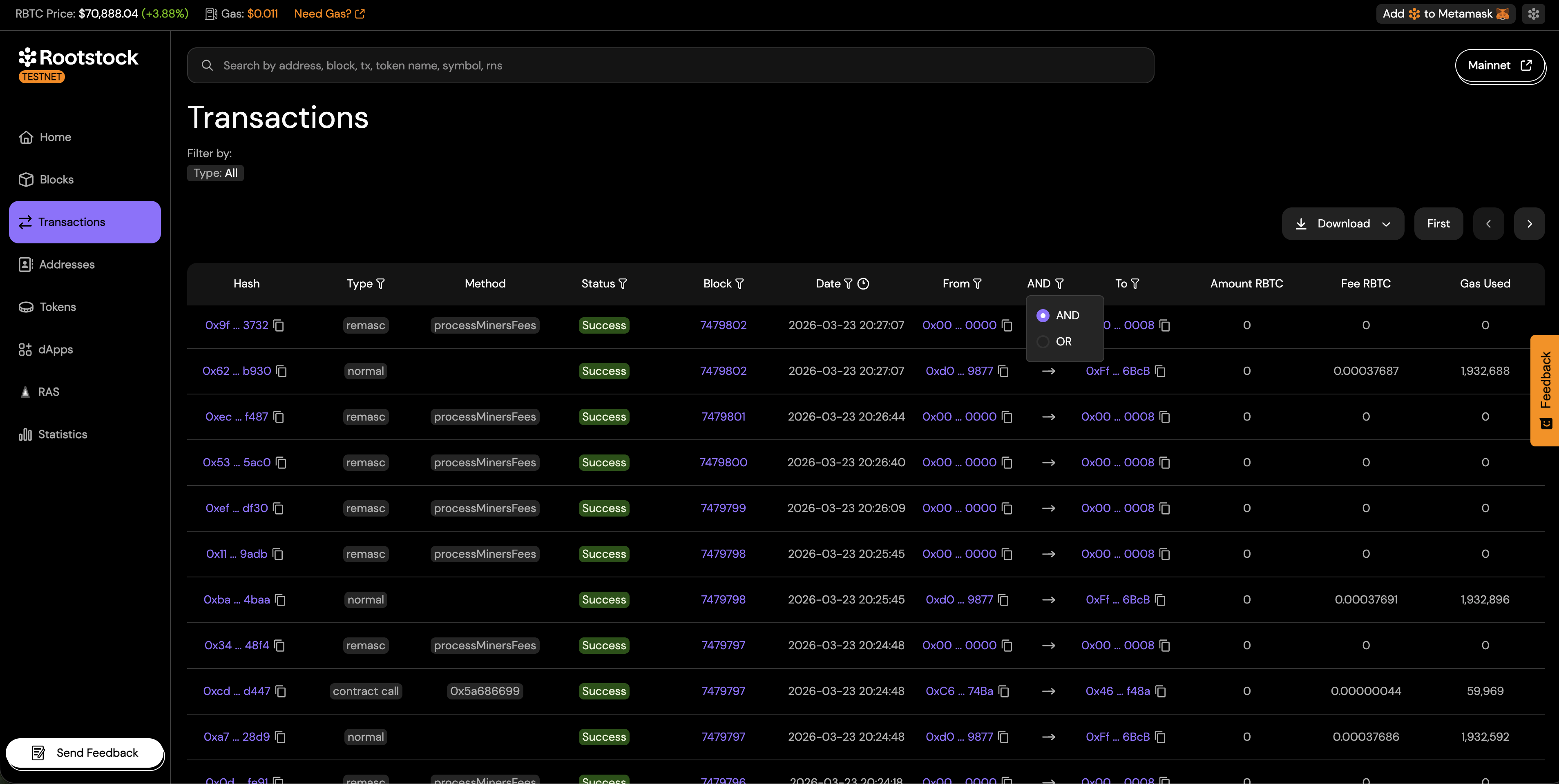
- If you set both From address and To address, choose AND or OR under Address logic so the explorer applies the combination you intend.
- Apply or search to refresh the list. Clear or reset the form when you want to start over.
Filter options
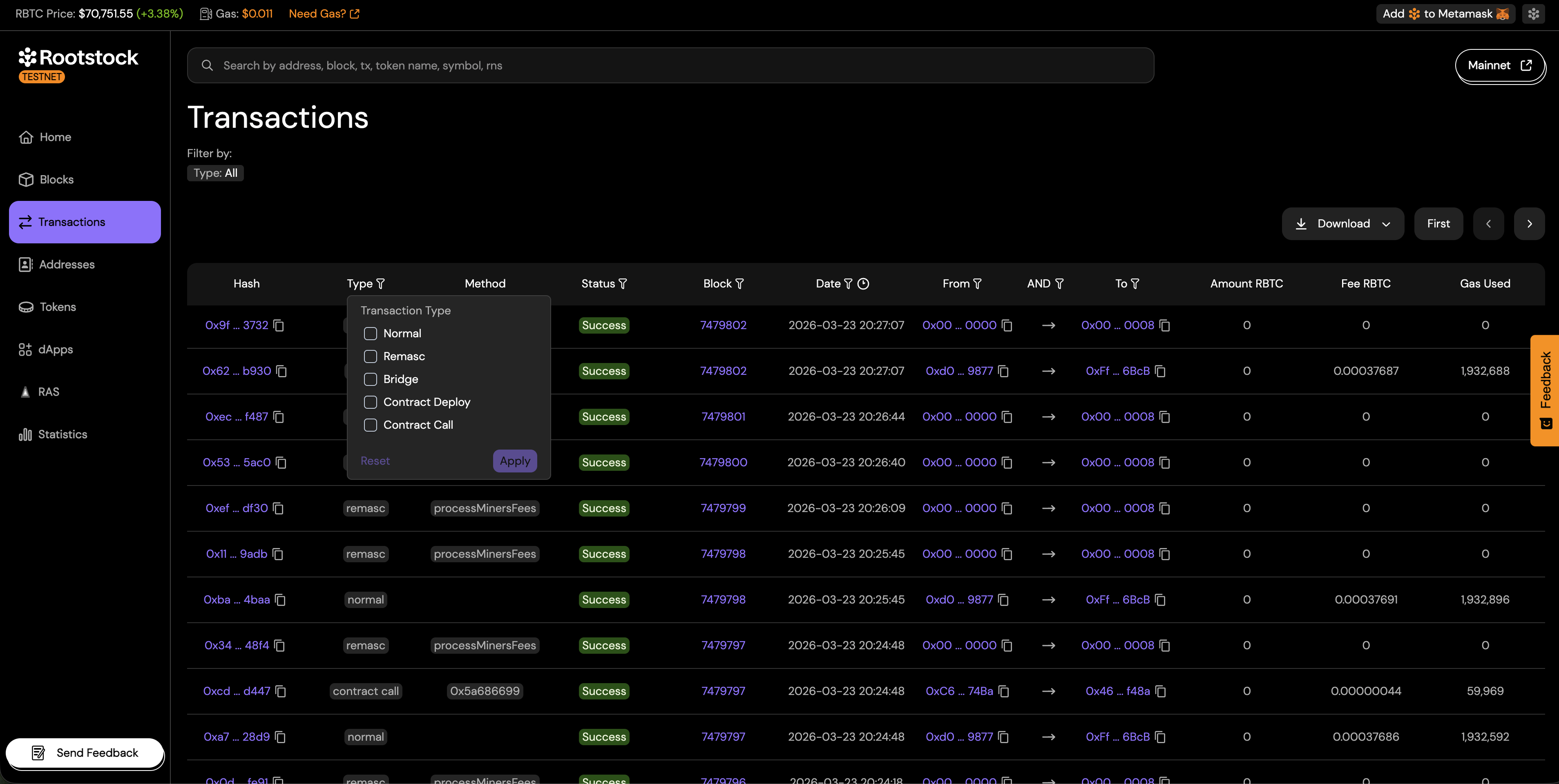
Transaction type
Limits rows to one kind of transaction. The explorer classifies activity into the types below. Pick the one that matches what you are looking for.
- Remasc: Rootstock reward and fee distribution transactions produced by the network.
- Bridge: Transactions that move assets across chains.
- Normal: Standard value transfers between addresses.
- Contract deploy: Transactions that deploy a new smart contract.
- Contract call: Transactions that interact with an existing smart contract.
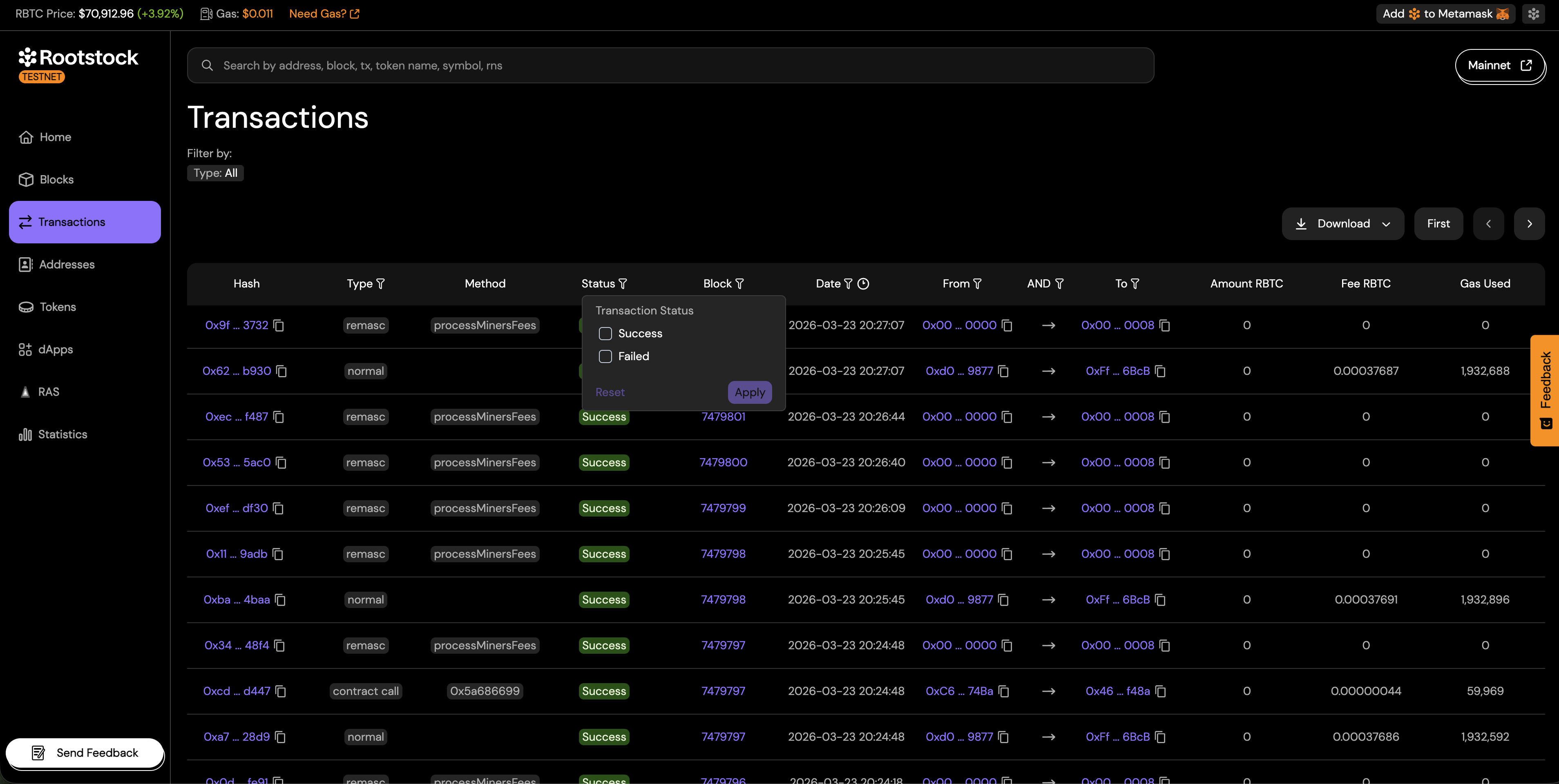
Status
Filters by execution outcome. You can choose Success or Failed.
- Success: The transaction was included in a block and executed without revert.
- Failed: The transaction was included in a block but execution reverted (for example, contract revert or out-of-gas). The sender still pays the transaction fee.
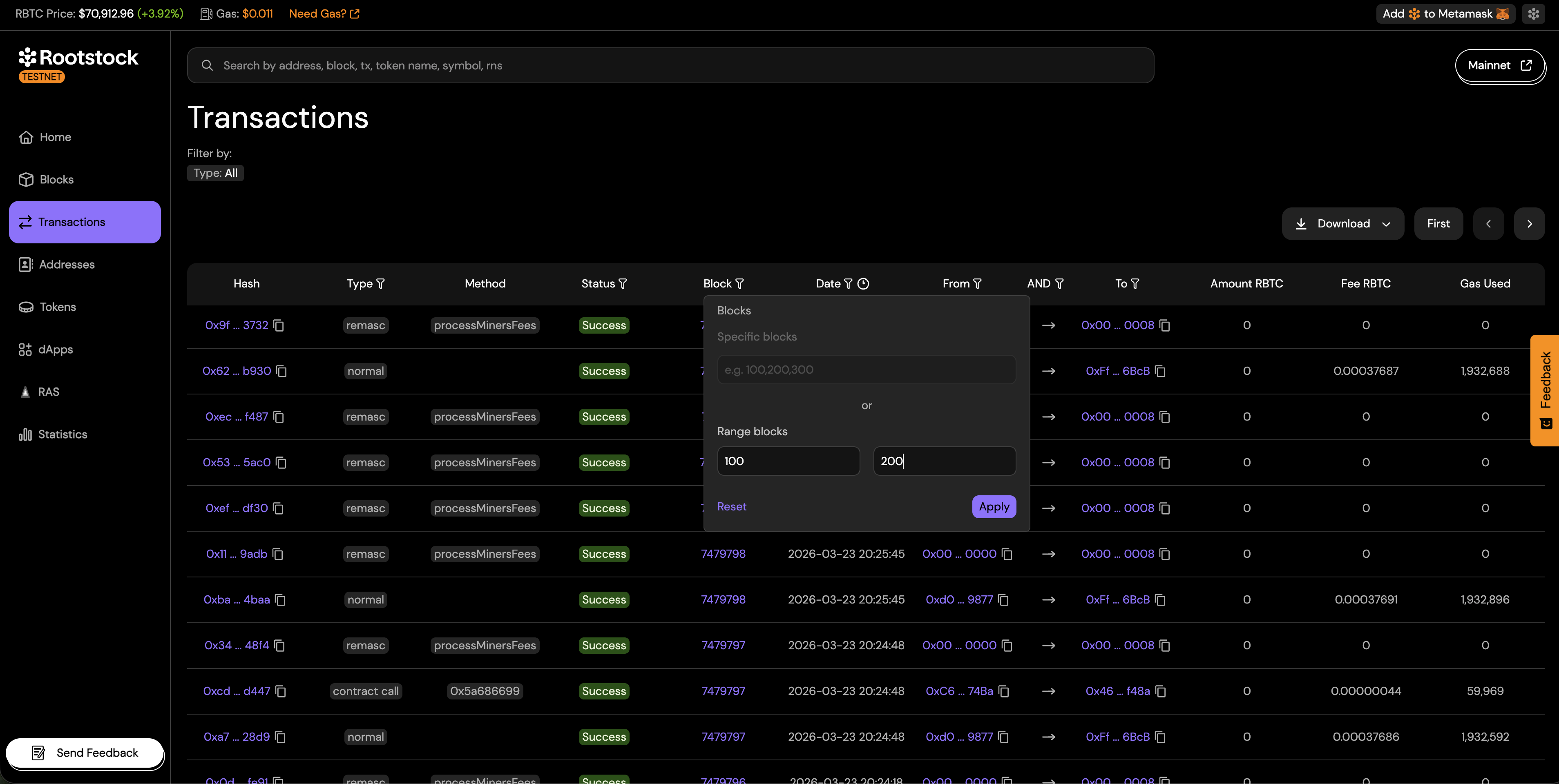
Block
Filtering ties results to where transactions were included.
- Specific blocks to match one block, or enter several block numbers separated by commas (for example,
100, 200, 300) to match transactions in any of those blocks.
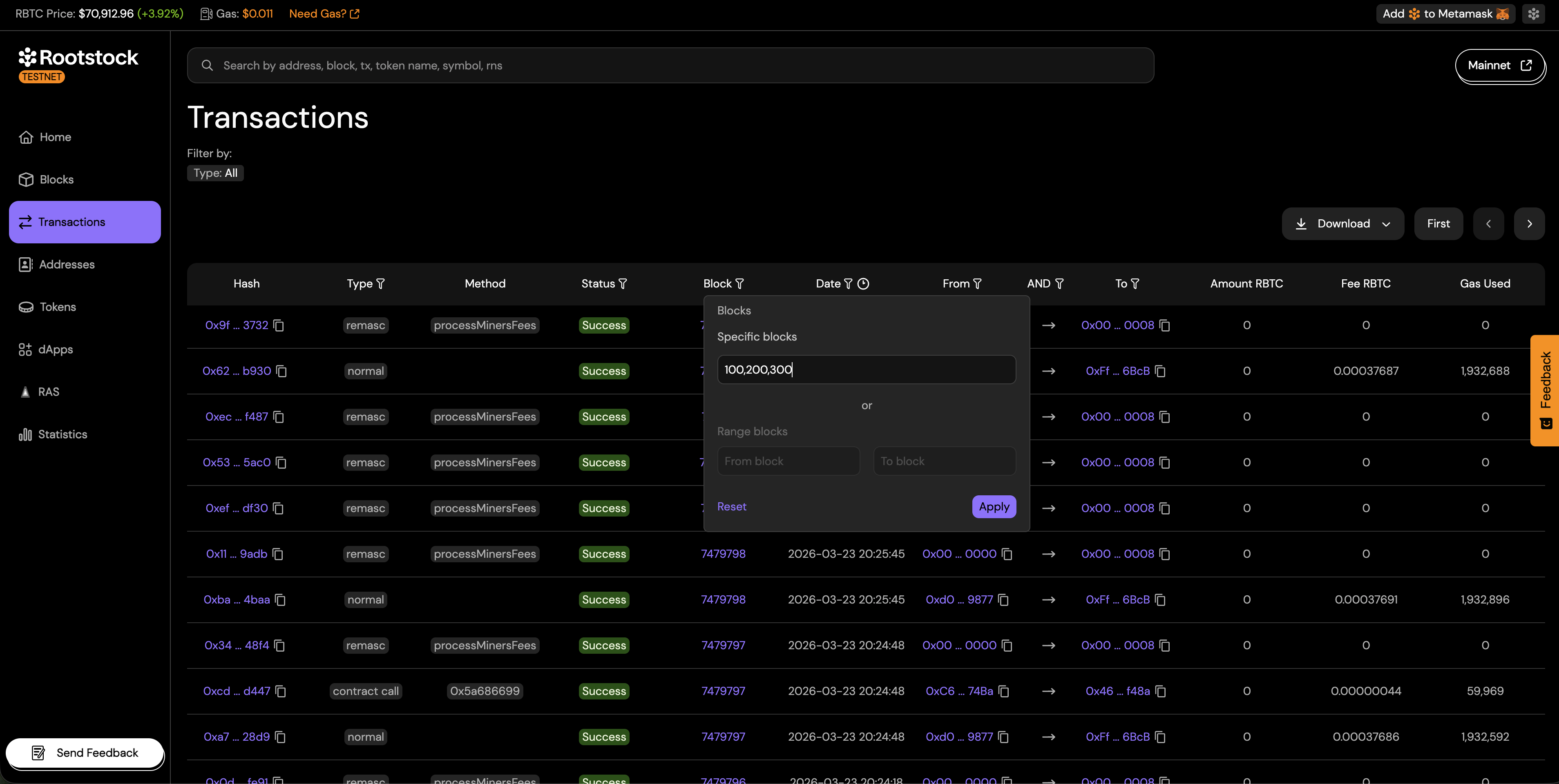
- Range blocks: Define a start and end block (for example, from block 100 to 200).
Date
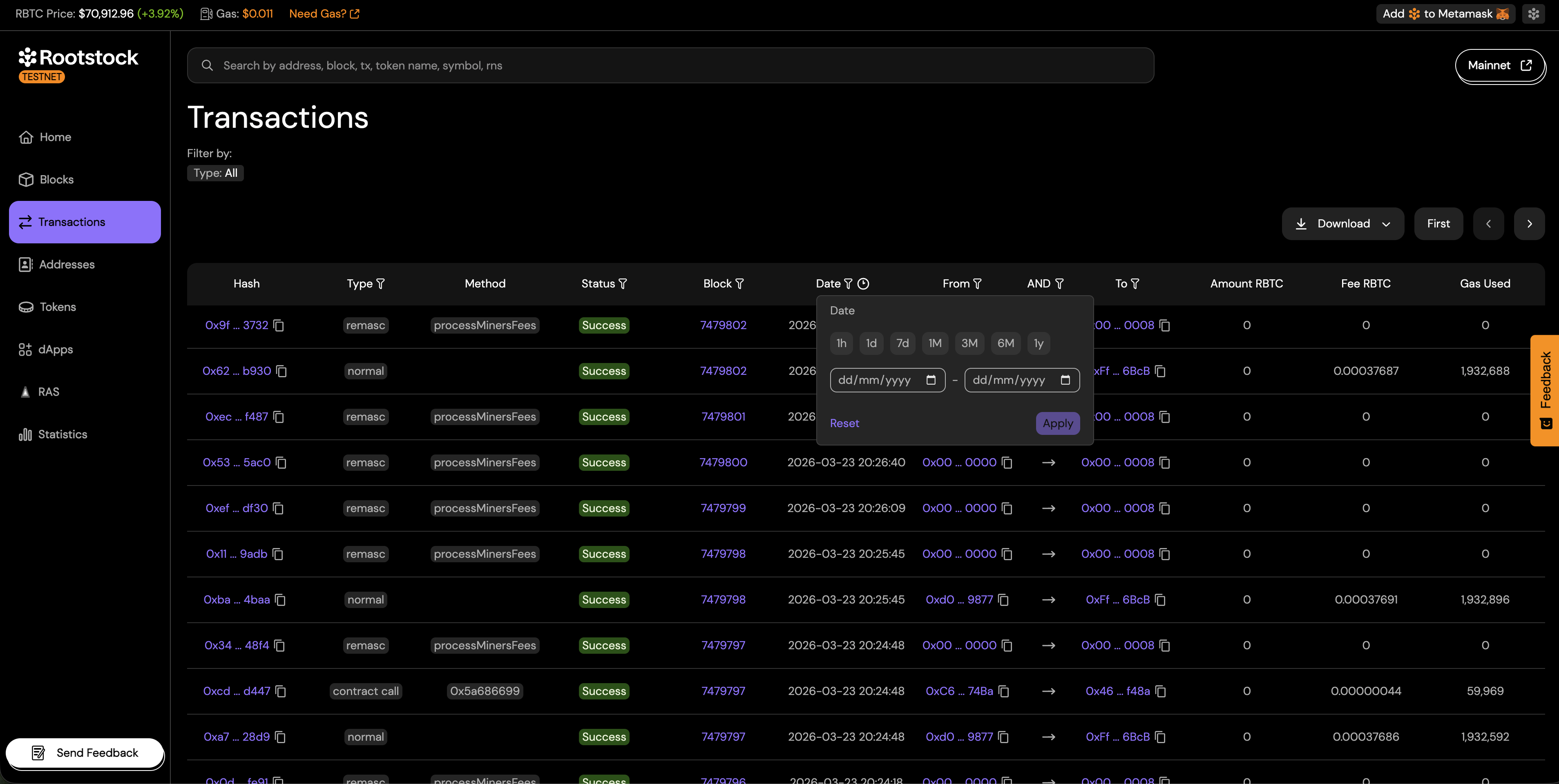
Filter transactions by time:
Choose an audit window preset to limit results to recent activity:
- 1h: Last hour
- 1d: Last day
- 7d: Last 7 days
- 1M: Last month
- 3M: Last 3 months
- 6M: Last 6 months
- 1y: Last year
You can also pick a custom date range when you need specific start and end dates.
From address
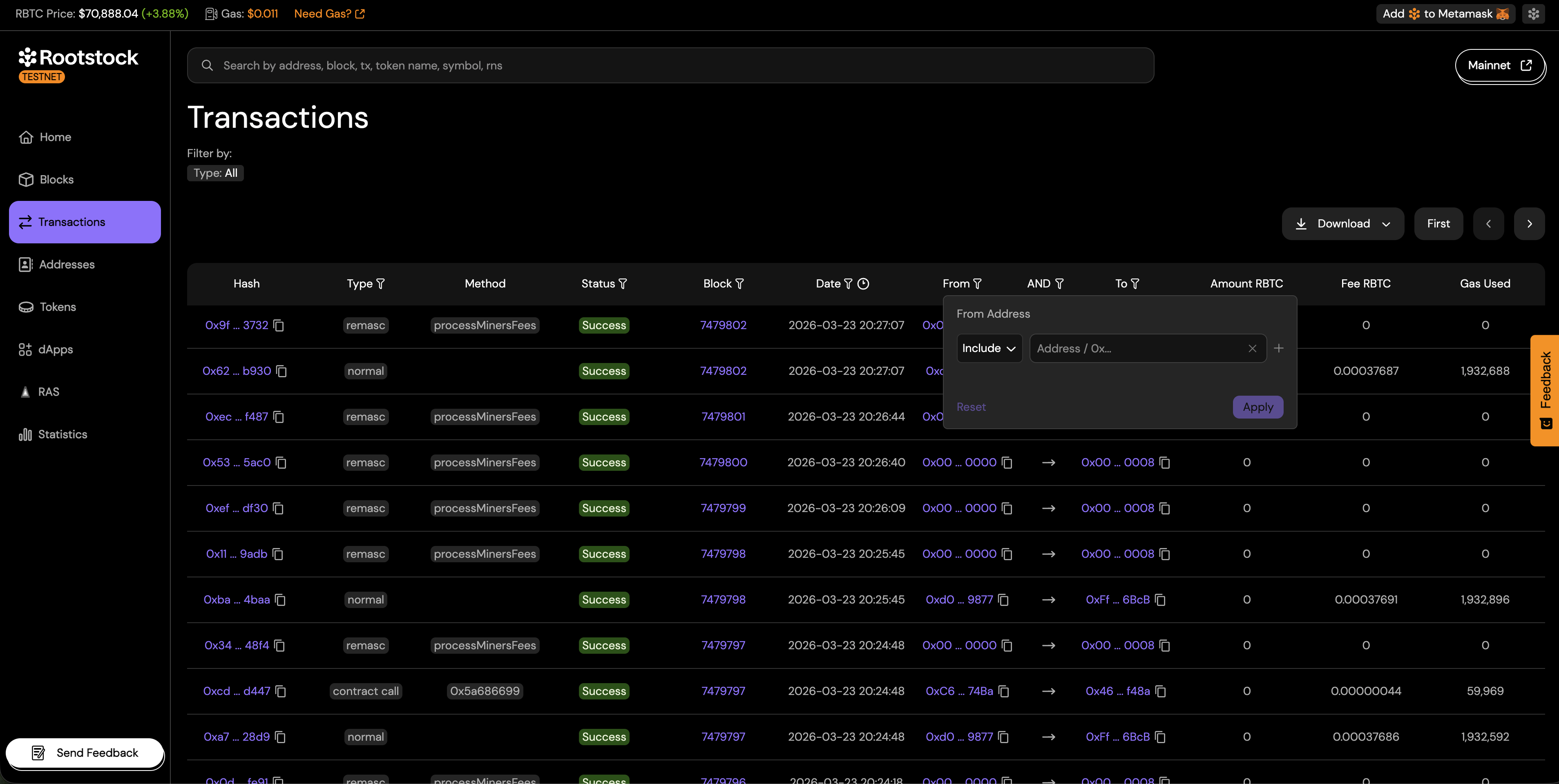
Filter transactions by From address. Enter one address or several addresses. The results include outgoing transactions from any of the addresses you list.
To address
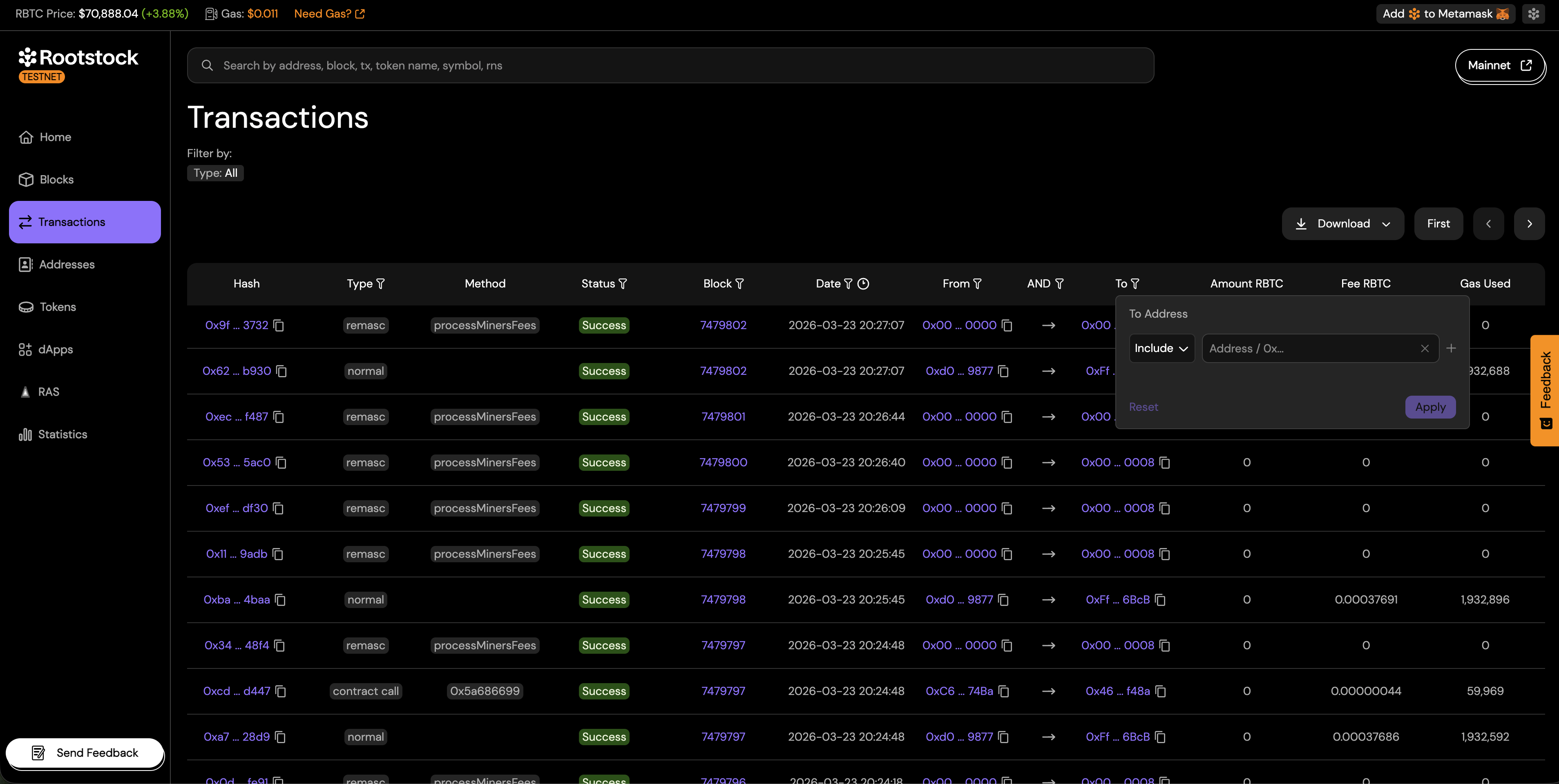
Filter transactions by To address. Enter one address or several addresses. The results include incoming transactions to any of the addresses you list.
Address logic (AND / OR)
When using both From and To filters, you can define how they are combined:
- AND: Transactions must match both From and To addresses.
- OR: Transactions can match either From or To address.
Practical examples
The following examples show how to combine filters. Adjust addresses, dates, and blocks to match your case.
Example 1: Failed contract calls from one sender in the last day
- Set Transaction type to Contract call.
- Set Status to Failed.
- Set From address to the wallet you investigate.
- Set Date to the last 24 hours or today’s date range.
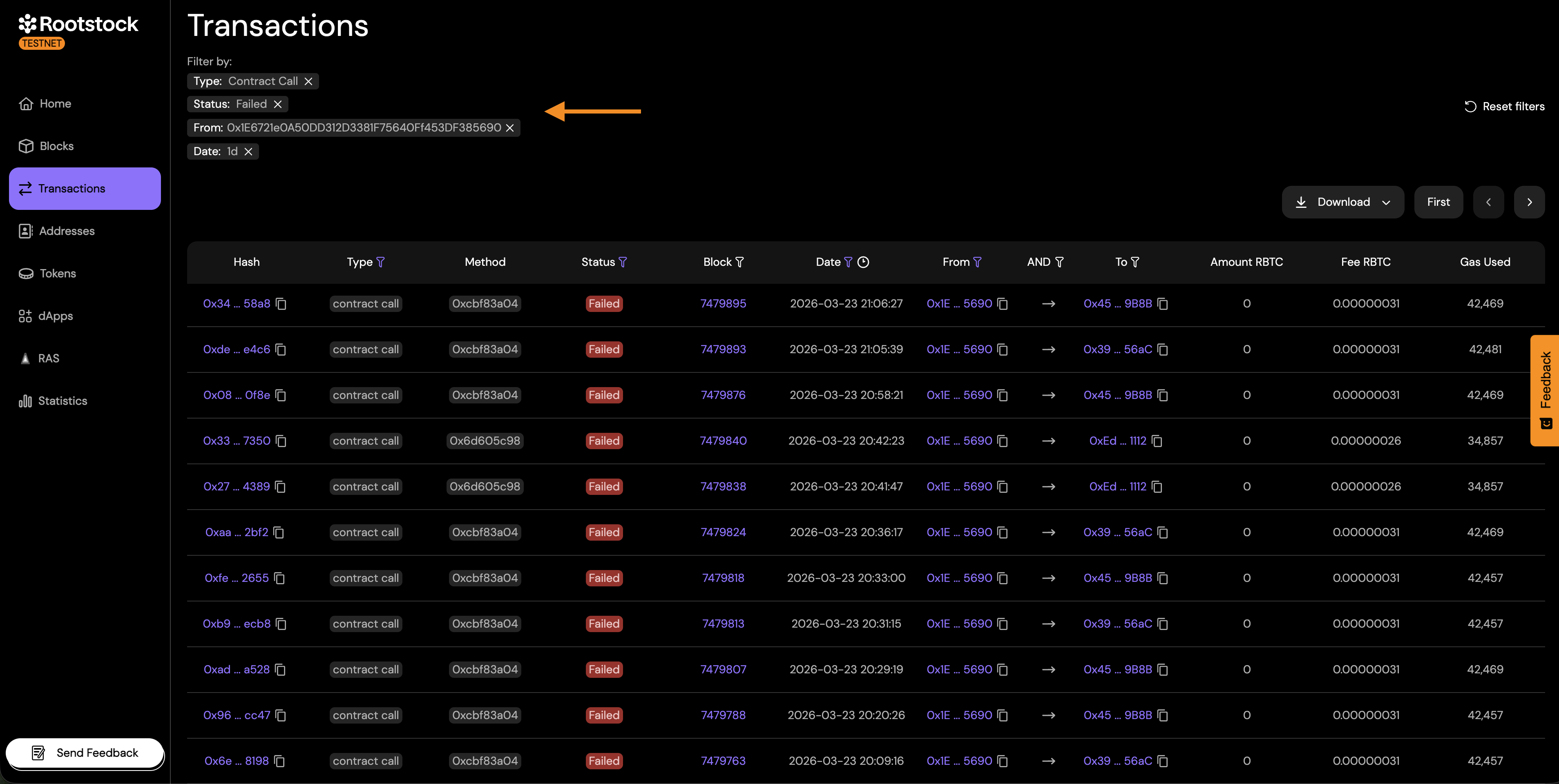
You get a list of reverted or failed calls from that sender, which helps when you debug failed transactions.
Example 2: Contract deployments in a block range
- Set Transaction type to Contract deploy.
- Set Block to your start and end heights.
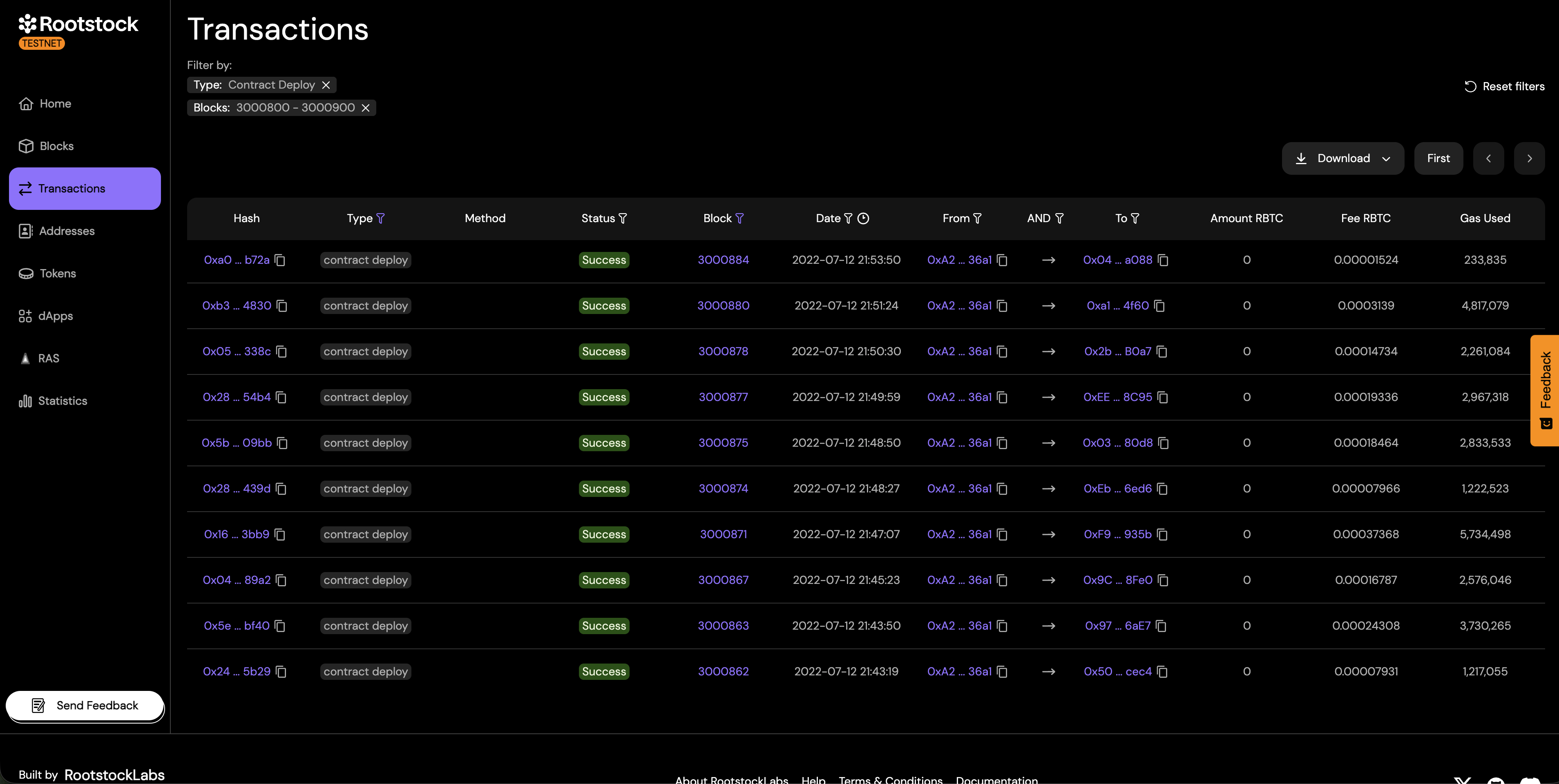
The results are a list of transactions that deployed new smart contracts in that block range. Each row is one deployment.
Example 3: Transfers between two known addresses
- Set Transaction type to Normal.
- Set From address and To address to the two addresses.
- Set Address logic to AND.
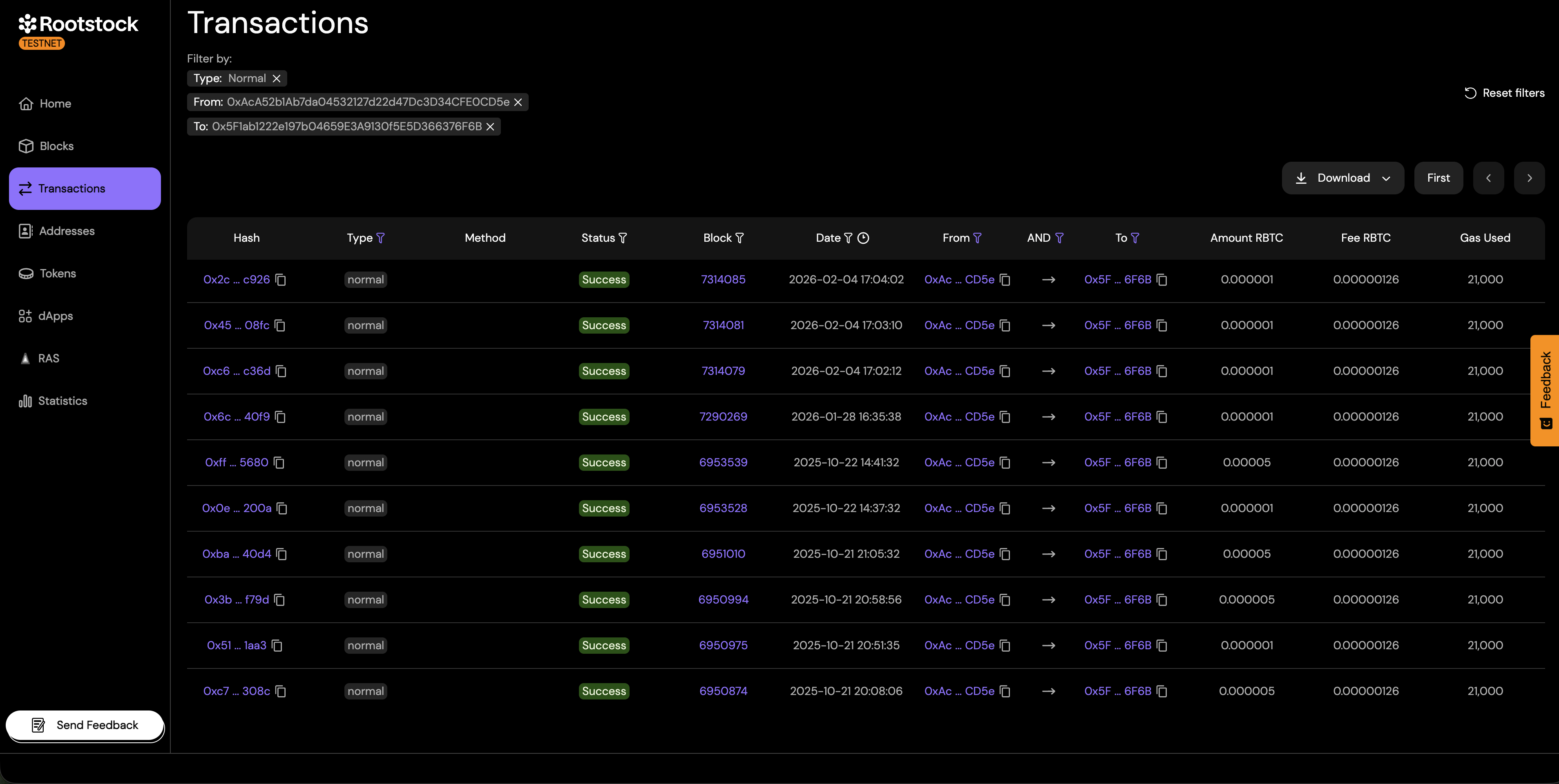
This shows transactions strictly between two specific addresses.
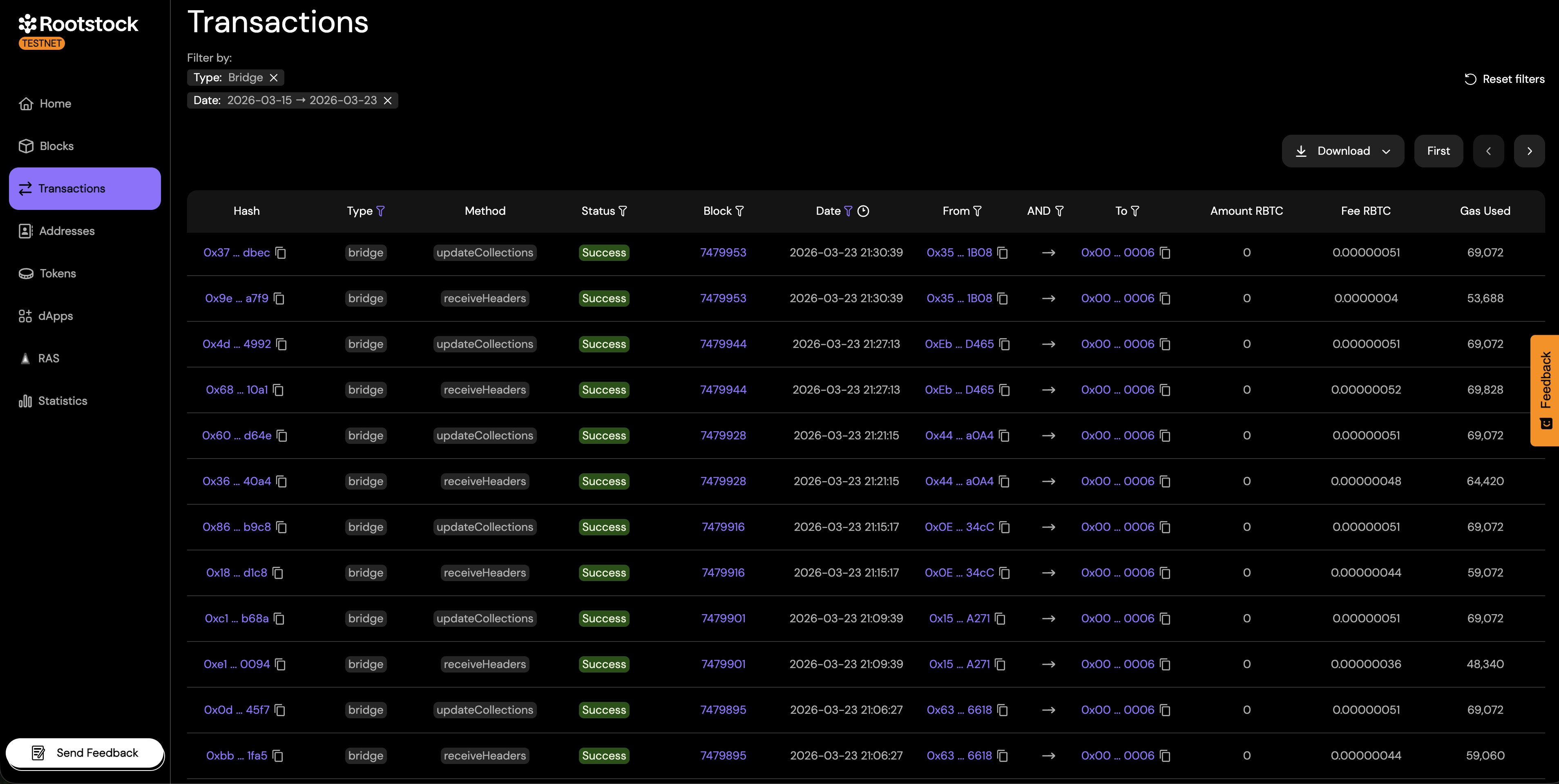
Example 4: Bridge activity on a specific date
- Set Transaction type to Bridge.
- Set Date to that day or range.
Conclusion
The Advanced Transactions Filter in the Rootstock Explorer is a powerful tool for exploring blockchain activity. By combining different filters, users can efficiently locate and analyze transactions, making it easier to debug, monitor, and understand the Rootstock network.
Related guides
- Navigate the Rootstock Explorer for search, tabs, and the home page.
- How to Read a Transaction in the Rootstock Explorer for field definitions (type, status, from, to, and more).